


How to use the online databases most effectively
The information below is 'broad brushstroke' in nature. A detailed usage manual is provided to subscribers.
There are two ways of viewing the databases:
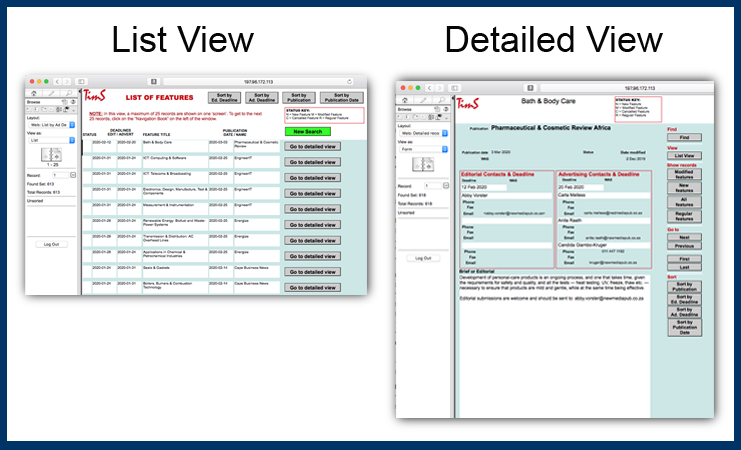
Navigation, searching and sorting
The database provides a number of navigation and sorting tools which are at the left and right of the window — as indicated by the red arrows in the image below.
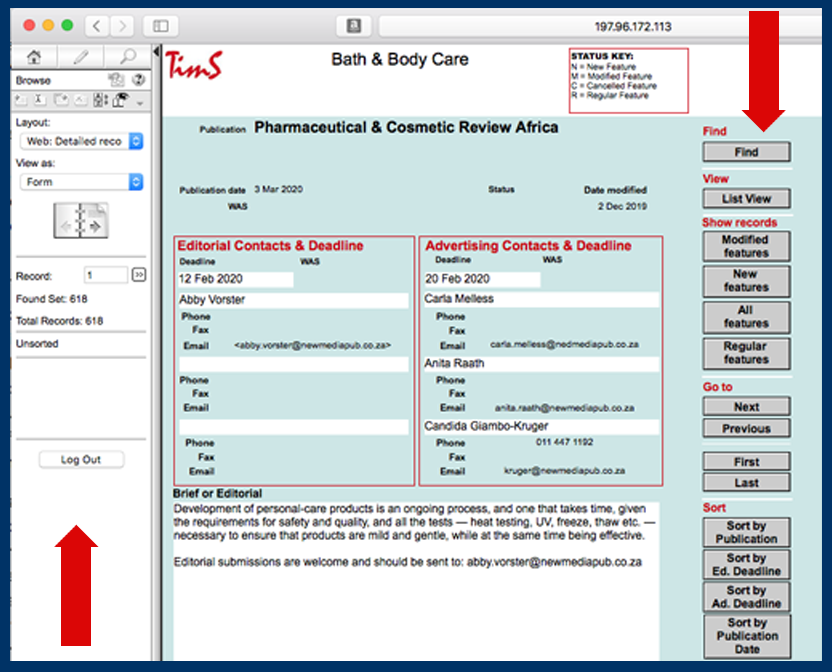
THE OPTIONS ON THE RIGHT
- FIND — takes you to the Search view. It is explained in detail in the Searching section below. You can access the Searching screen from the Detailed View only.
- VIEW — changes your view of the database so you can see all the records you are browsing.
- SHOW RECORDS — does an automatic search of the database and returns four different sets:
- only those features that have had something change, e.g. the deadline has been put back or brought forward, are tagged as Modified (have an M in the Status field);
- only those features that are New listings (have an N in the Status field);
- all the features in the database, regardless of status or type;
- only those features that appear regularly in publications, e.g. Motoring in The Star, are tagged as Regulars (have an N in the Status field).
- GO TO — allows you to "page" through the records one after the other using the Next/Previous buttons; allows you to go to the beginning or end of your found records group using the First/Last buttons.
- SORT — allows you to sort the records you are browsing in the way that best suits your requirements.
THE OPTIONS ON THE TOP LEFT
The left hand options are more appropriate for the 'power' user who understands databases and their functioning well. If you allow your pointer to hover over an item, a pop-up will appear explaining its function.
Searching
To search for specific features, click the Find button in the List or Detailed View. It will bring you to the screen below.
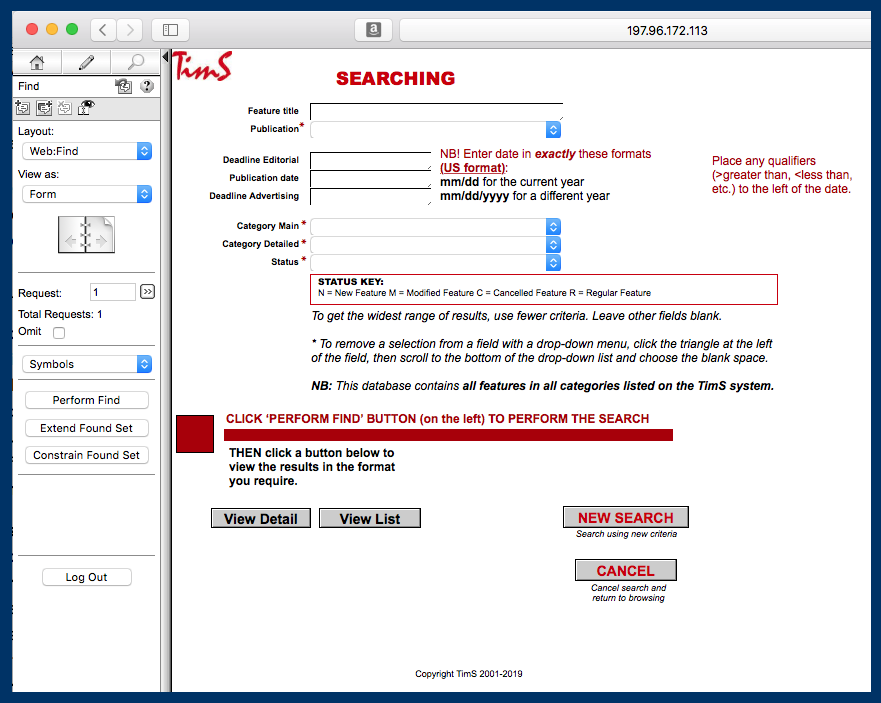
It is better to use fewer specifics in a search to find the largest number of records that may relate to the desired subject area. The more search criteria set, the smaller the number of records that will contain all those specifics. Records that relate to the subject area, but don't match all the specified criteria, will not be displayed in the found set.
Using the Symbols from the drop down list in the left hand column will allow you to refine your search in various ways. Some of them are described below. Most are fairly self-explanatory, but it is important to read the screen!
You can search by:
- Feature Title
- Type key word/s in the box (e.g. Financial Management). This will find all features that have those two words in their titles.
- You can customise your search by using on the the Symbols from the drop-down options in the left column. NB symbols must be placed before any typed text.
- Publication — choose the publication name from the drop-down list. Scroll up and down to find the publication name. Click on the name, so it is highlighted and press Return/Enter on your keyboard.
- Editorial Deadline
- Click in the box. Choose the Symbol from the drop down options in the left column to greater than or equals, them choose the Symbol // to find all records from the current date forwards.
- To find a specific date, choose the Symbol for equals, and then type in the date you require. NB format the date exactly as indicated in the instructions on the right of the window.
- Advertising Deadline — use the same settings as for the Editorial Deadline search.
- Publication Date — use the same settings as for the Editorial Deadline search.
- Category Main — choose the category from the drop down menu. Some features straddle several categories. This means that you can find features that also relate to Education, Engineering, Lifestyle etc. in the Business & Finance database. Click on the list to display the list, and click on the required category to choose it.
- Category — choose the category from the drop down menu. These categories are more detailed, and would specifically relate to Printers, or Life Insurance, or Motor Vehicles, for instance. Click on the list to display the list, and click on the required category to choose it.
- Status — In the Criteria box, use N to find all new entries since last week; use M to find all records that have been modified since last week. Use R to find all features that appear regularly (e.g. Motoring in The Star).
PERFORMING THE SEARCH is done by clicking the Perform Find button in the left column. After that, you may click the view preference buttons at the bottom of the window to choose whether you wish to view your records as a List or individually in Detail. If you wish to perform a new search, click the 'New Search' button to clear all currently entered criteria and put the page into find mode.